Deskmode Pro Suite – Customize & Secure Your WordPress Admin
A WordPress admin plugin to Customize and secure your WordPress dashboard
How it works
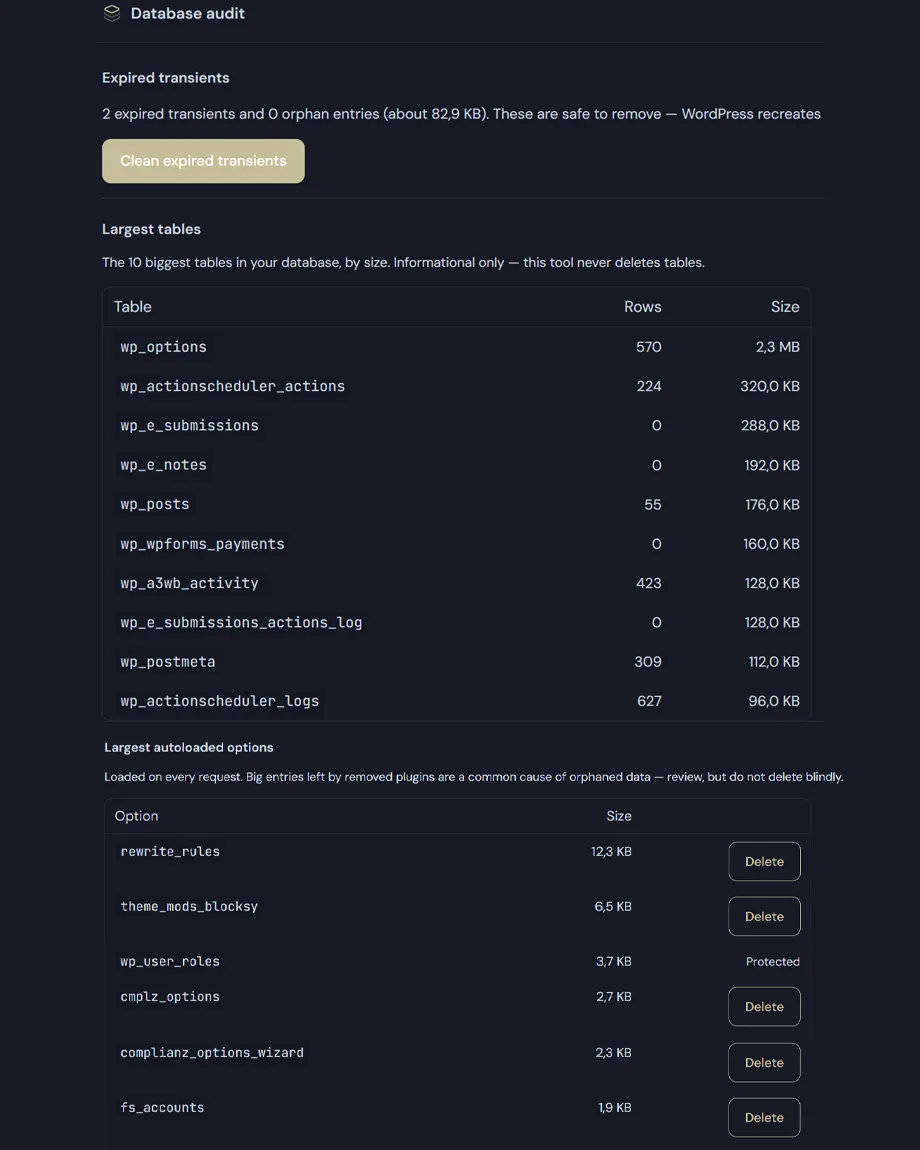
Optimise WordPress database. An audit that shows, rather than rummages
The page has three parts. Two are read-only and exist to give you a picture; the third is the only one that touches anything, and it deals with the most harmless data there is.
Expired transients
- Transients are temporary caches: when they expire WordPress doesn't always remove them, so they sit in the options table taking up space.
- The page counts the expired and orphaned ones and cleans them in one click, after an explicit confirmation.
- When there's nothing to clean it says so, rather than showing a button that would do nothing.
The ten largest tables
- Name, row count and size on disk, ordered by weight.
- It's the fastest way to discover that a long-removed plugin left a few hundred megabytes behind.
- Informational only: this tool never deletes a table. That's a choice, not an omission.
The heaviest autoloaded options
- These are the options WordPress loads on every single request, even when nothing will use them — one of the most common causes of site-wide slowness.
- The table lists them with their size, so leftovers from removed plugins stand out.
- Core options are marked as protected and have no delete button; if one is attempted anyway, the operation is refused.
- For everything else deletion exists but goes through two confirmations, the second of which shows the exact name of the option you are about to remove.
Check WordPress database size, table by table
A single number tells you almost nothing: knowing your database is 480 MB doesn’t say whether that’s your content or an abandoned plugin’s leftovers. The page lists the ten largest tables with their row count and size on disk, ordered by weight, so the answer takes one glance instead of a session in phpMyAdmin.
It’s usually enough to spot the culprit. A log table from a plugin you removed two years ago, a statistics table nobody has looked at since launch, a queue that stopped being emptied — these are the entries that turn a database from tidy into unwieldy, and they never announce themselves. What the list won’t do is delete them for you: from the size alone there is no way to tell an orphaned table from one your shop still writes to every hour.
The advice is written in the page itself, not just here: big entries left by removed plugins should be reviewed, not deleted blindly. And before any cleanup, take a backup.
The same screen also holds the migration tool: a serialization-aware search and replace with a mandatory preview.