

Who signed in, what changed, from where

WordPress activity log

A WordPress activity log that collects eighteen event types in one filterable table, with the user, the IP address and the country on every row. When something stops working, or an administrator appears that nobody remembers creating, the answer is in there.

Monitor WordPress logins and reconstruct an incident minute by minute

WordPress activity log

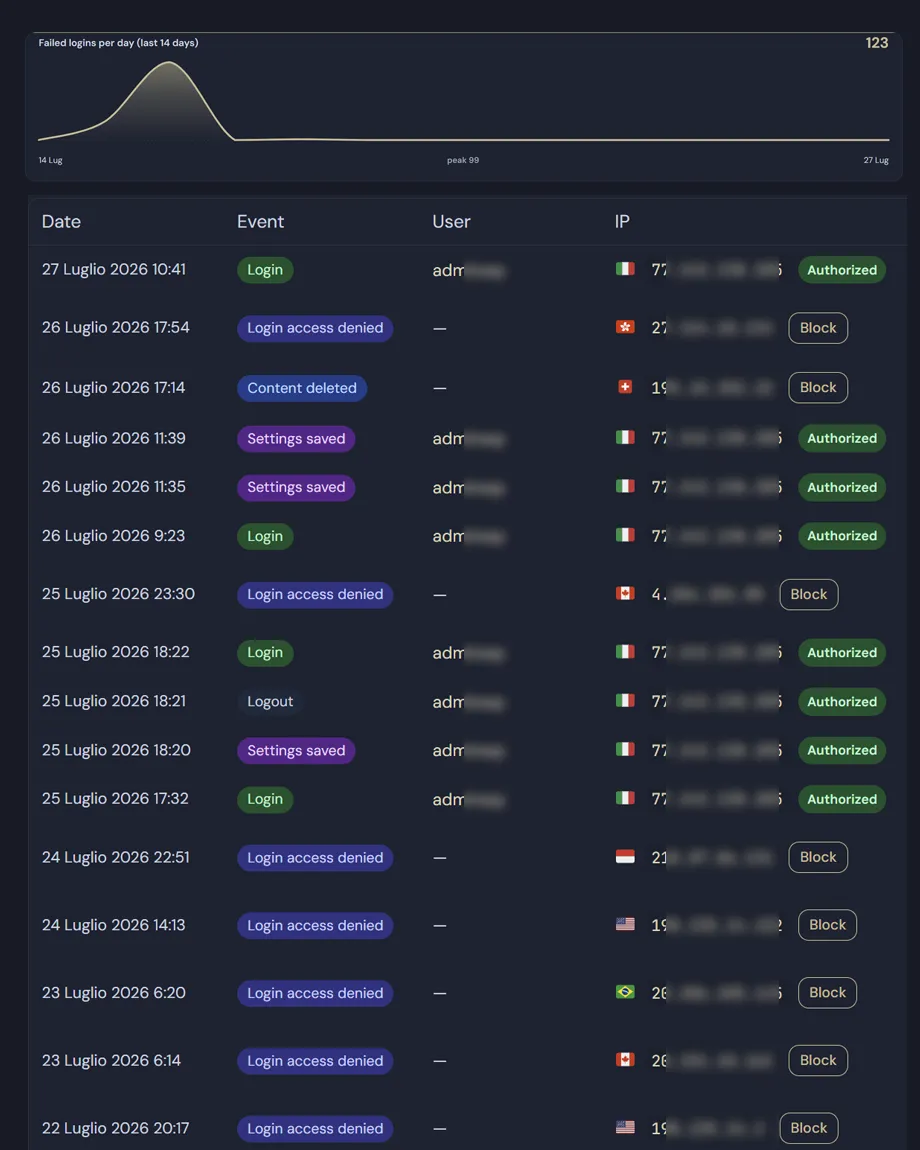
Every entry carries a timestamp, the user, the IP address, the country, the action, the object it applied to and a short detail line. Filter by event type, search by user, address or object, and the sequence becomes readable.

Authentication

  • Sign-ins, sign-outs and password resets.
  • Failed logins and access refused at the login page, including which form was targeted.
  • The case that matters most: a block where the password was correct. It means someone holds working credentials and only your rules are stopping them.

Users and roles

  • Accounts created and deleted.
  • Every role change — the first thing to check when an administrator appears that nobody remembers adding.

Who changed my WordPress site?

  • Plugins activated and deactivated, theme switches, updates installed.
  • Content published, unpublished or deleted.
  • Saves to Deskmode’s own settings, naming the page involved.

What each column holds

  • Date: formatted with your site’s own settings, in the site timezone.
  • Event: a colour-coded badge per action type, so a page of entries reads at a glance.
  • User: linked to the profile while the account exists; deleted accounts keep their name rather than turning into a broken link.
  • IP: with the country flag, linked to the Network Info lookup and paired with a Block button. Allowlisted addresses show Authorized, already-blocked ones show Blocked.
  • Object and details: what the action applied to, plus a short explanatory line.

WordPress activity log: why it has to stay light

  • Events go to a dedicated database table indexed by timestamp, action and IP — not into an option row, which WordPress would load and rewrite in full on every single event.
  • The log keeps its ten thousand most recent entries and drops the oldest; the counter above the table shows where you stand against that ceiling.
  • The country of each entry is read from the cache the security module already filled, so writing an entry never triggers an outbound request.
  • A fourteen-day chart of failed logins sits above the table: a spike is visible before you start reading rows.
  • Collection can be switched off entirely, and the log cleared from the page with a confirmation step.

Monitor WordPress logins

Every address is a link on WordPress activity log. One click opens the IP lookup already filled in, showing the country, the network owner and the AS number behind the row — which is how you go from “someone tried to sign in” to knowing who and from where.

Privacy. The log stores IP addresses and usernames, which count as personal data under the GDPR. Mention it in your privacy policy along with the retention you actually apply: the ten-thousand-entry ceiling is not a time limit, so on a quiet site an entry can sit there for years.
An IP address is personal data whenever it can identify someone, even indirectly. Recording it does not require consent when it rests on legitimate interest: logging IP addresses for information security — blocking attacks, investigating abuse — is lawful without consent, provided the purpose and retention are documented.
Read the documentation

WordPress activity log showing date, event, user, IP and country for each entry
The WordPress activity log.

Frequently asked

WordPress activity log: the questions we get most

Five answers on what gets recorded, what it costs in performance, and what the GDPR expects from the data it keeps.

How do I find out who changed my WordPress site?

Open the WordPress activity log and filter by event type. Every row tells you who performed the action, when, from which IP address and on which object: the plugin activated, the theme switched, the content deleted, the settings page saved.

The most useful case is the least obvious one. When a site “breaks on its own”, somebody almost always activated or updated something shortly before. Cross-referencing the time of the failure with the log narrows the search to seconds, instead of a morning spent deactivating plugins one by one.

Which events are recorded?

Eighteen types across three families. Authentication: sign-ins, sign-outs, failed logins, access refused at the login page, password resets, and blocks where the password was correct. Users: accounts created, accounts deleted and every role change. Site: plugins activated and deactivated, theme switches, updates installed, content published, unpublished or deleted, and saves to Deskmode’s own settings.

The one to watch is the block with a correct password: it means someone holds valid credentials and only your rules are stopping them from getting in.

Does it slow the site down to monitor WordPress logins?

No, and the reason is a design decision. Events go into a dedicated database table indexed by timestamp, action and IP. Many plugins store their logs in a WordPress option instead: that option is loaded on every request and rewritten in full on every new event, so the bigger it grows the more it costs.

The country on each entry is read from the cache the security module already filled, so writing a row never triggers an outbound request. And the log keeps only its ten thousand most recent entries, dropping the oldest, so it cannot grow without bound.

Can I find out who is behind an IP address?

Yes — every address in the log is a link. One click opens the Network Info page already filled in with that IP and shows the country, region, city, ISP, organisation and AS number, with the location on a map and a check against five mail blacklists.

Next to the address there is also a Block button, which adds it to the blocklist without reloading the page. If the address is already allowlisted the button doesn’t appear at all: the allowlist takes priority, so blocking it would have no effect.

Is the log GDPR compliant?

The log stores IP addresses and usernames, which are personal data. The plugin gives you the tools to handle them — collection can be switched off, the log can be emptied from the page with a confirmation, and nothing is ever sent to an external server — but compliance depends on how you use them.

Two things are on you. Document the processing in your privacy policy with the correct legal basis, normally legitimate interest in the security of the site, which the GDPR explicitly recognises for network and information security. And state a retention period you actually honour: the ten-thousand-entry ceiling is not a time limit, so on a quiet site an entry can remain for years. If you declare thirty days, you have to clear the log accordingly.

Shopping Basket