

The menu your client needs, not the one your plugins want

Customize the WordPress admin menu

Reorder items by dragging, rename them into words your client understands, change the icon, and hide what they don't need.
Per role you can also deny access properly, not just remove the link: denied pages answer "access denied" even if someone types the address by hand.

How it works

Four things per item

  • Order: drag the item where you want it. The same works for submenus, each within its own parent.
  • Title: rewrite it. "Posts" can become "News"; a custom post type can take the name that thing actually has. The counters — pending updates, comments awaiting moderation — stay attached to the item and keep working.
  • Icon: pick from WordPress Dashicons or from two additional sets bundled with the plugin, in line and material styles.
  • Visibility: take out of the menu whatever your client doesn't need to see every day.

Changes apply to the menu as WordPress hands it over, after every plugin has registered its own items — so nothing is missing from the list because it registered late.

WordPress admin menu per role

This is the distinction almost every plugin of this kind leaves blurry, and in practice it's the difference between tidiness and security.

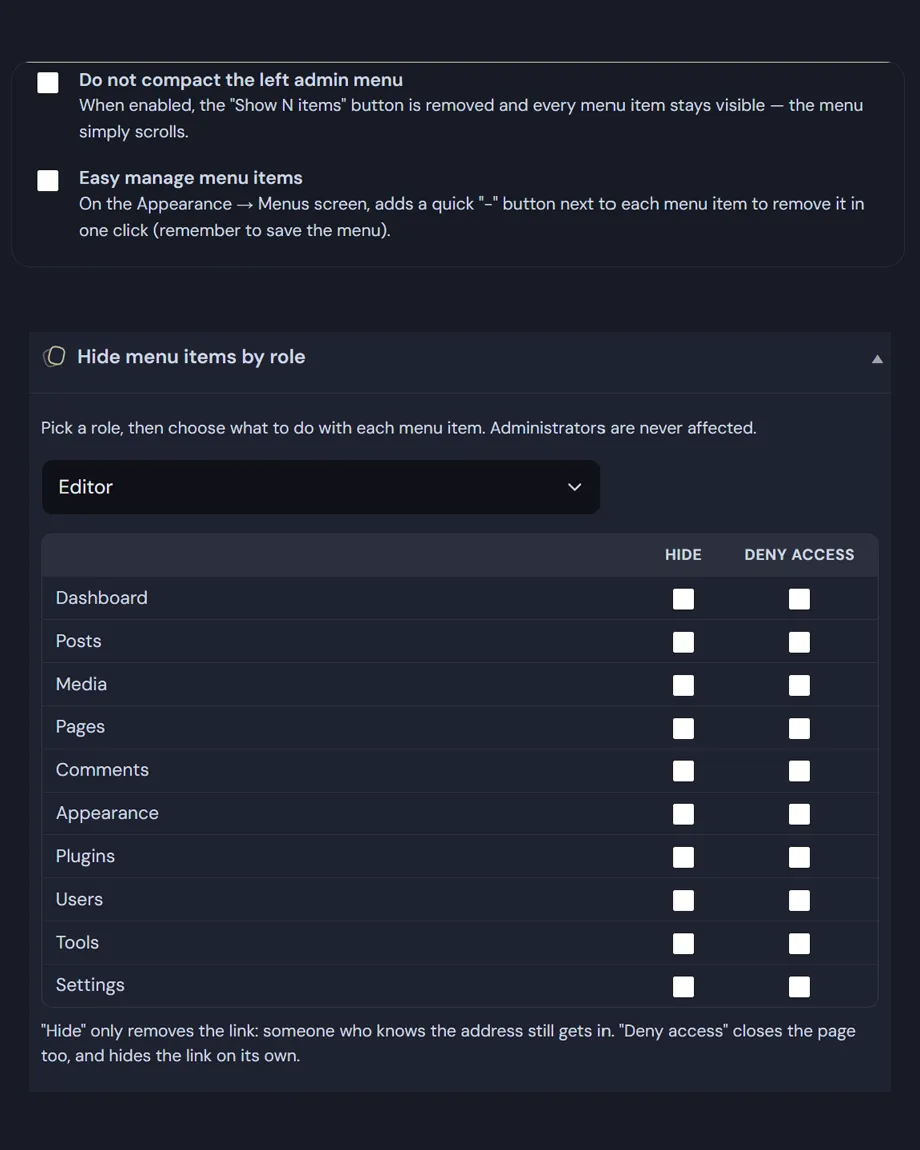
  • Hide removes the link from the menu for the roles you choose. It's a housekeeping choice: the page is still reachable by typing the address.
  • Deny actually blocks access. The current request is checked against the denied sections and their submenus, because denying "Posts" without denying the new-post screen would leave the back door open. Anyone who gets there receives an access denied page.
  • Denying implies hiding: it would be absurd to show an item that then answers "forbidden".
  • Administrators are never restricted by these rules, so you can't lock yourself out of your own settings.

Hide admin menu items in WordPress: hiding an item is tidiness, not security. If a section genuinely must be off-limits to a role, use Deny — or, for the sensitive cases, a role with the right capabilities in the first place.

WordPress's own site menus can be reordered too — that's quick menu items, a different feature living in Appearance → Menus.
Read the documentation

Customize the WordPress admin menu
Customize the menu: WordPress admin menu per role.

Customize the WordPress admin menu

Customising the admin menu: the questions we get most

Five answers on what you can change, the difference between hiding and denying, and what happens to plugins you add later.

What can I change when I customize the WordPress admin menu?

Four things per item. The order, by dragging it wherever you want, submenus included. The title, rewriting it into words your client understands: “Posts” can become “News”, and a custom post type can take the name that thing actually has. The icon, choosing from WordPress Dashicons plus two additional sets bundled with the plugin. And its visibility.

Counters stay attached to their items and keep working: the badges for pending updates or comments awaiting moderation don’t disappear when you rename the item holding them.

Does hiding admin menu items in WordPress protect those pages?

No. If you hide admin menu items in WordPress, the pages themselves are still reachable. Hide removes the link from the menu: it is a housekeeping choice, and the page stays reachable to anyone who types its address. Deny actually blocks access, and whoever gets there receives an access denied page.

Denying implies hiding, since showing an item that then answers “forbidden” would be absurd. And the check compares the request against the denied sections and their submenus: denying “Posts” without denying the new-post screen would leave the back door open.

How does a WordPress admin menu per role work?

For each item you choose which roles see it and which don’t, and separately which are denied access altogether. Administrators are never restricted by these rules, so you cannot lock yourself out of your own settings.

If a section genuinely must be off-limits to someone, though, the sturdier route isn’t this screen but a role with the right capabilities in the first place: WordPress roles and capabilities are the layer where core itself decides who can do what. What you get here sits one level above — convenient and reversible.

What happens when I install a new plugin?

Its item appears at the bottom of the menu as usual, and from then on you will find it listed on the customiser screen, ready to reorder, rename or hide. Changes apply to the menu as WordPress hands it over, after every plugin has registered its own items: nothing is missing from the list because it registered late.

If I deactivate Deskmode, do I lose the work I did on the menu?

The menu returns to exactly what it was: original order, original titles, original icons, every item visible. Nothing is left half-done and no WordPress setting is permanently altered.

Your choices stay saved, so reactivating the plugin brings the menu back as you left it, with nothing to rebuild.

Shopping Basket