

Take back the top of your dashboard

Hide WordPress Admin Notices Without Losing Them

Plugins treat the notice area as advertising space: Black Friday offers, review requests, invitations to go Pro. Here they're collected into a single line with a count.
Nothing is destroyed: the notices stay fully readable on their own page.

See pricing All features

clean up the WordPress dashboard

Plugin ads in the WordPress admin: collected, not thrown away

The difference from a stylesheet that hides everything is that here notices are moved: the dashboard shows one line with how many were collected, and a dedicated page shows them all in full, working, with their buttons intact. Nothing is lost, and nothing is dismissed behind your back.

The line in the dashboard is a plain link, not a collapsible panel: an accordion waiting to be opened would just be another notice asking for attention.

It knows who wrote what

A filter applied to the whole notice area would only know that "someone" printed something. Here every registered function is run individually and the file it came from is traced back to the plugin containing it. That's what makes the genuinely useful thing possible: excluding one plugin at a time.

  • The options page fills itself with the plugins that actually emitted notices on your site — no list to type by hand.
  • For each one you decide whether to let it through or collect it. The security plugin warning about a real problem stays in view; the one reminding you about a spring sale doesn't.

Errors stay visible

  • With the option on, any block containing an error is left where it is. The check looks not only at the block itself but at its contents: a plugin that forgets to close a <div> makes the browser swallow everything that follows, errors included, and hiding that block would mean hiding the error.
  • When in doubt it doesn't hide: if the content can't be analysed on your server, the block stays visible.
  • Notices are left untouched where they are the page: updates, plugin installation, upgrade screens.

The way out: define('ADMIN3WEBBLUE_SHOW_NOTICES', true); in wp-config.php undoes the clean-up and puts every WordPress admin notice back where it was - useful when you're diagnosing a problem and want to see each message exactly as it comes.

Just a few words: collection works on WordPress's standard notice area. A plugin that draws its own banner inside the page body, instead of using the intended hooks, is beyond the reach of any tool of this kind.
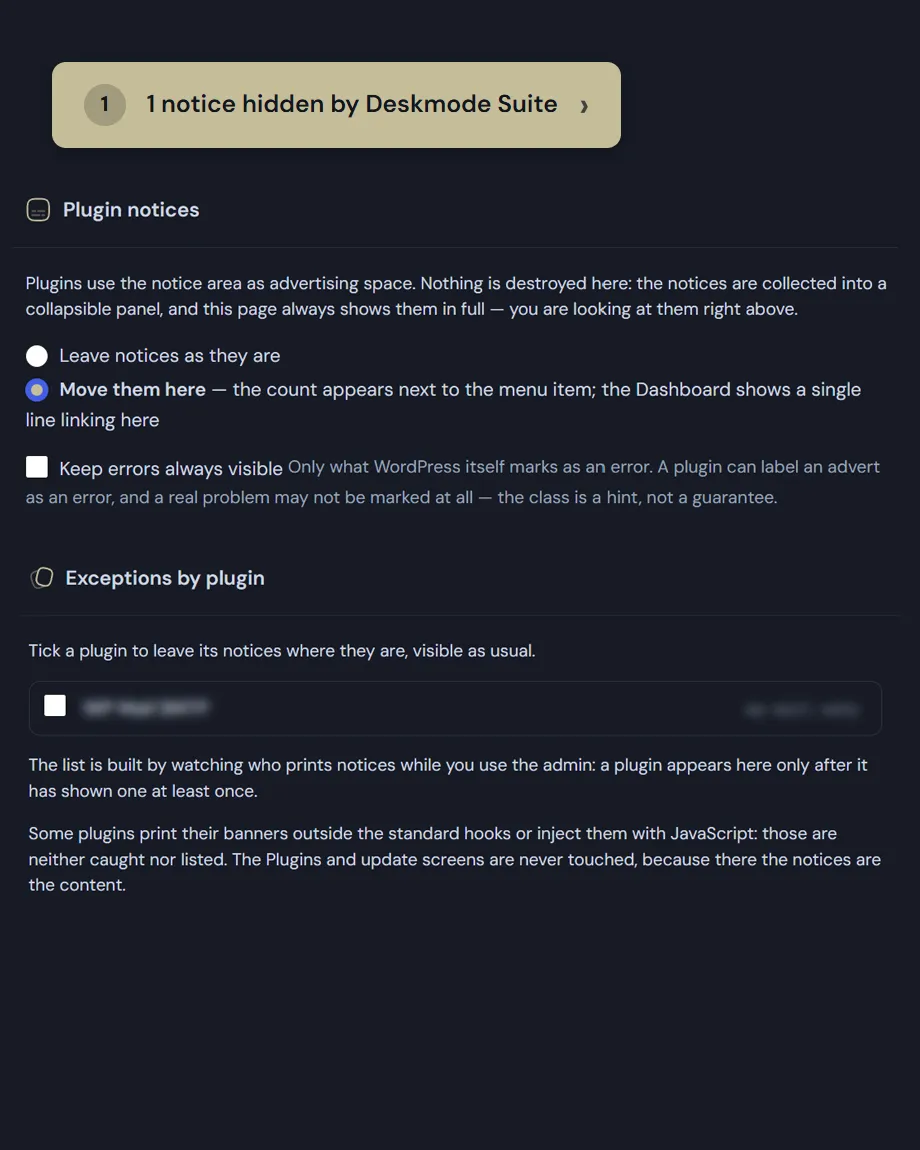
Read the documentation

hide WordPress admin notices
Hide WordPress admin notices: the summary line with its count, and the options page listing the plugins that emit notices.

Clean up the WordPress dashboard: Frequently asked

Hide WordPress admin notices: the questions we get most

Five answers on what gets collected, what always stays visible, and where the rest goes.

If I clean up the WordPress dashboard, are notices deleted, or just moved?

Moved, never deleted. The dashboard shows one line with how many were collected, and a dedicated page shows them all in full, working, with their buttons intact: nothing is lost and nothing is dismissed behind your back.

That is the difference from the CSS snippets people use to clean up the WordPress dashboard: those simply hide, so the day a plugin reports a real problem you don’t see it either. The summary line is a plain link rather than a collapsible panel, because an accordion waiting to be opened would just be another notice asking for attention.

How does it know which plugin printed a notice?

A filter applied to the whole block would only know that “someone” wrote something. Here every function hooked to WordPress’s admin_notices hooks is run individually, and the file it came from is traced back to the plugin containing it.

That is what makes the genuinely useful thing possible: excluding one plugin at a time. The options page fills itself with the plugins that actually emitted notices on your site, with no list to type by hand.

Could I miss an important error?

With the option on, any block containing an error is left where it is. The check looks not only at the block itself but at its contents: a plugin that forgets to close a <div> makes the browser swallow everything that follows, errors included, and hiding that block would mean hiding the error.

When in doubt it doesn’t hide: if the content can’t be analysed on your server, the block stays visible. And notices are left untouched where they are the page: updates, plugin installation, upgrade screens.

Is it fair to hide plugin ads in the WordPress admin?

The official plugin guidelines on WordPress.org expressly ask developers not to clutter the admin area with advertising and repeated upsell prompts. A plugin that turns the notice bar into promotional space is already going beyond what it was asked to do.

That said, the judgement stays with you: for each plugin you decide whether to let it through or collect it. The security plugin reporting a real problem stays in view; the one reminding you about a spring sale doesn’t.

Does it work with every plugin?

Collection works on WordPress’s standard notice area, which is where the vast majority of plugins write. A plugin that instead draws its own banner inside the page body, ignoring the intended hooks, is beyond the reach of any tool of this kind — ours included.

If you are diagnosing a problem and want to see every message exactly as it comes, the ADMIN3WEBBLUE_SHOW_NOTICES constant in wp-config.php puts every notice back where it was.

Shopping Basket