

Move the door, and put your own name on it

Change WordPress login URL

Every WordPress site answers at the same address, with the same grey form and the same error messages. That predictability is what automated attacks are built on. Deskmode lets you move the login somewhere only you know, dress it in your own brand, restrict the hours in which it answers at all.

How the custom URL and WordPress login hours works

A login address of your own, not the default one

Bots don't look for your site. They walk a list of addresses and ask every one of them for /wp-login.php. Change that address and the vast majority of the traffic hitting your login simply stops arriving — not because it was blocked, but because it never found the door.

Set your own slug and the old address stops responding: a request to the default path returns a plain 404, exactly like any other page that doesn't exist. Nothing suggests that WordPress is running underneath, and nothing hints that the form has been moved elsewhere.

Change WordPress Login URL and hide wp-login.php

  • Custom login slug, chosen by you and changeable at any time.
  • The default path answers with a 404 and gives away nothing about the site.
  • Registration and password-reset URLs follow the new address automatically, so the links in system emails keep working.
  • A recovery link is shown to you on saving: keep it, it is how you get back in if you forget the slug.

Login hours

Most teams sign in during working hours. Anything arriving at four in the morning is either an emergency or an attack, and the second is far more common. Login hours lets you define the window in which signing in is allowed at all: outside it the form refuses the credentials even when they are correct.

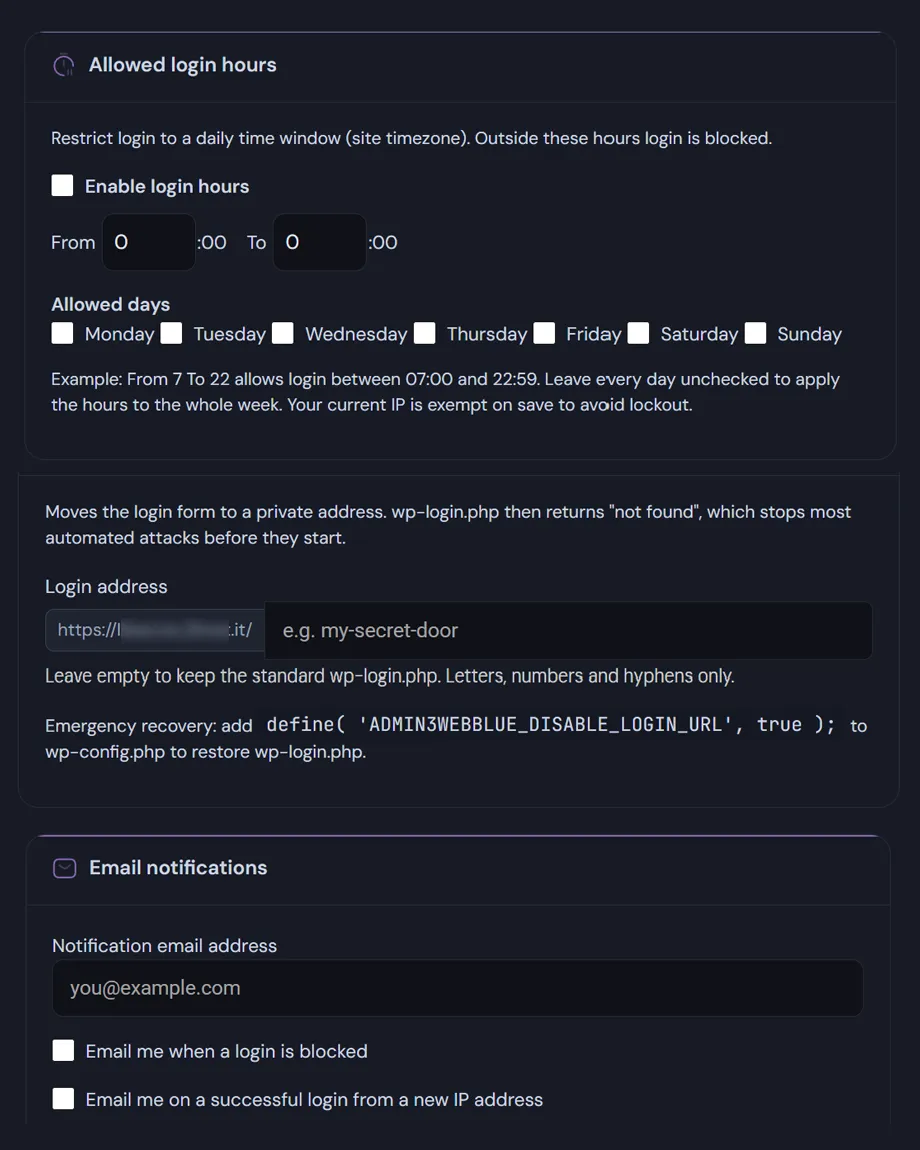
  • A time window plus the days of the week it applies to (allowed days), so the weekend can be closed entirely or opened on reduced hours.
  • The site timezone is used, so the rule follows the clock your team already works by rather than the server's.
  • Attempts outside the window are recorded like any other rejection, with IP and country: a recurring pattern at three in the morning shows up in the log.
  • Your own IP address is excluded from the restrictions automatically. If your connection has no static IP and your address has changed in the meantime, you will no longer be able to sign in outside the allowed hours. Should you need to reach your WordPress dashboard in that situation, you can disable the feature from the wp-config.php configuration file.

None of these settings replaces the attempt limits and lockouts of login security. They work together: this module only makes the login harder to find.

Before you change the slug: keep the login link somewhere safe!
Read the documentation

Change WordPress login URL: the Login options screen in Deskmode, showing the custom login slug and the login hours settings.
Change WordPress login URL.

Change WordPress Login URL: Frequently asked

Login options: the questions we get most

Five answers on the custom login address, the WordPress login hours, and how not to lock yourself out.

How do I change my WordPress login URL?

Pick the word you want — say studio-access — and from then on the page answers at yoursite.com/studio-access. The standard address stops responding, and anyone trying it gets a “not found”, exactly as with any other page that doesn’t exist.

Save the new address in a password manager before switching it on, not on a sticky note. And if you lose it, the ADMIN3WEBBLUE_DISABLE_HARDENING constant in wp-config.php puts everything back to standard: it needs access to the server files, so it is a way back in for you and not for a stranger.

Does hiding wp-login.php genuinely make a site safer?

Let’s be precise: it doesn’t make the login stronger, it makes it less visible. This is security through obscurity, and anyone who has singled you out will find the address anyway.

What you gain is a collapse in volume, because almost all automated attacks try wp-login.php and nothing else: less noise in the logs, less load on the server, fewer attempts to review. The real protection sits underneath, in the failed-attempt limit and two-factor authentication.

How do WordPress login hours work?

You pick a start hour and an end hour, both on the hour. From 7 to 22 means logins are allowed between 07:00 and 22:59: the final hour is included in full, so there is no need to set 23 to cover the evening. Below that you choose the days of the week, and leaving every day unchecked applies the window to the whole week.

The reasoning is simple: automated attacks keep no hours, while people do. On a site where nobody works after eight in the evening, every overnight attempt is suspicious by definition.

Which clock is used, mine or the server’s?

The site’s, meaning the timezone set in WordPress Settings › General. This is what causes the most confusion: many hosts run their servers on UTC, so if the site timezone isn’t configured properly the window slides an hour or two from what you expect.

A thirty-second check on that screen before switching the restriction on saves you the client phone call about not being able to sign in at nine in the morning.

What happens to people already signed in, and could I lock myself out?

Sessions already running are never cut off: the restriction applies to signing in, so someone who logged in at 21:50 keeps working past 23:00 and is only stopped at their next authentication. Ending a session mid-way would cost unsaved work to someone who did everything right.

As for locking yourself out, your current IP address is exempted automatically when you save, and addresses on the allowlist take precedence over any time rule regardless.

Shopping Basket