

Stop brute force before it reaches your password

WordPress login security

The WordPress login page answers everyone, forever, with unlimited attempts. Deskmode puts a limit on it: failed attempts are counted, repeat offenders are locked out by IP and by username, and every rejected sign-in is recorded with the address it came from — so you can see an attack while it is happening, not after.

Why WordPress login security matters

Every day, every server with a public IP - which is to say almost all of them - and every domain is hit by thousands of attempts against the login page, or against files in folders where attackers know of bugs and flaws they can exploit to take over a site, or an entire system.

Unless you are a system administrator, or you install a plugin that tracks incoming traffic to your WordPress pages, there is practically no way to find out this is happening. Most people have no idea that every machine online is constantly probed by bots: they ping it, scan for open TCP ports, look for files with known vulnerabilities and, above all, hunt for website login pages.

Stopping those attempts before they start is the best way to protect your servers and your sites. That is part of why Deskmode Pro exists: to show you at a glance who tried to reach your pages, and when.

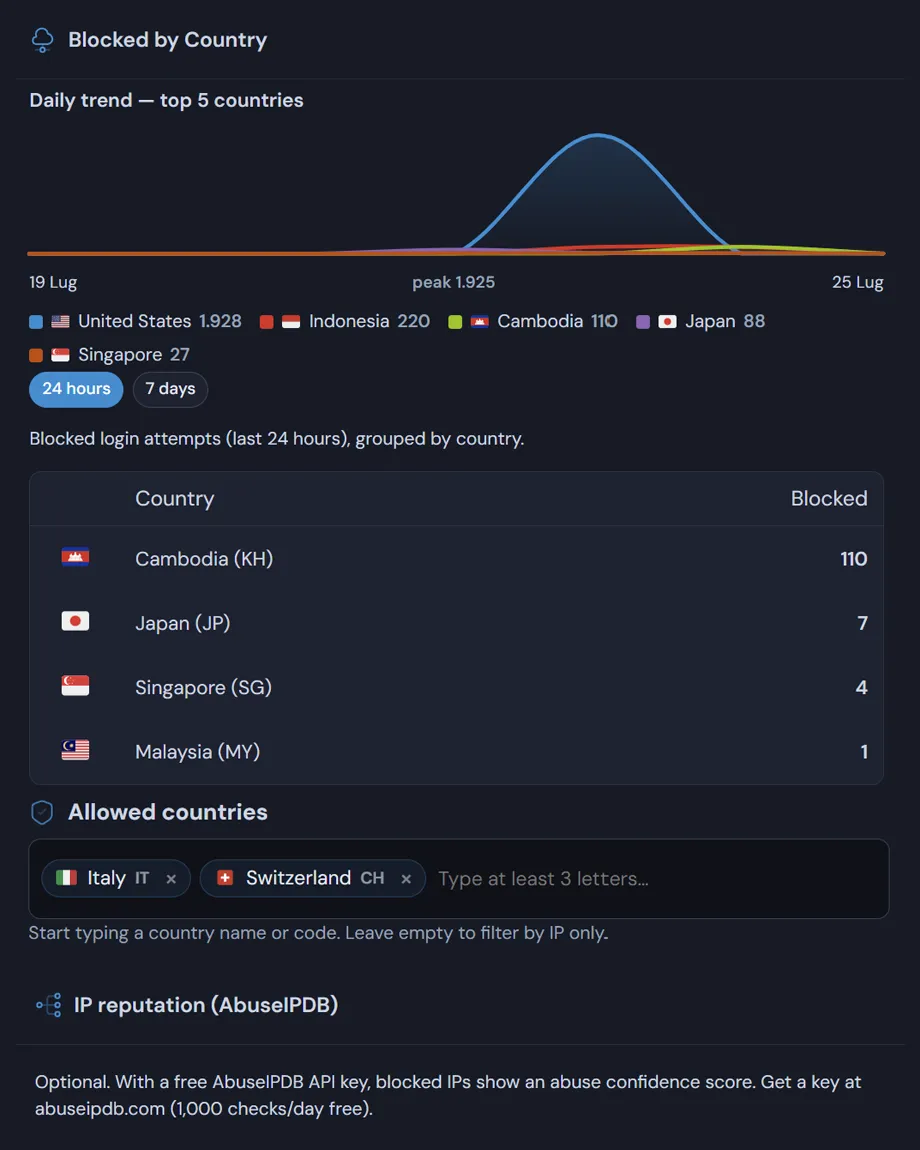
Keeping out of the login anyone with no reason to be there - better still, allowing access to the WordPress login page only from the country where your administrators are - is the most effective way to safeguard your site.

How WordPress login security works

A limit, a lockout, and a record of who tried

Every failed sign-in is counted against two separate keys: the IP address the request came from, and the username that was tried. Once the threshold you set is passed, that IP and that username are locked out for the duration you choose. The attacker doesn't get an error explaining what happened — the form simply stops accepting them.

Counting on both keys matters. A single machine hammering one account is stopped by the IP counter. A distributed attack spreading a common password across thousands of addresses never trips an IP limit, but it hits the same username over and over — and that is what the second counter catches.

What you can set to enable WordPress brute force protection

  • Maximum failed attempts before a lockout, and how long the lockout lasts.
  • Hourly block counter: repeated lockouts within the same hour extend the ban automatically.
  • Separate thresholds for IP addresses and for usernames.
  • Permanent block list for addresses that keep coming back, and an allow list for your own office or VPN.
  • Optional block on attempts against usernames that do not exist, a reliable signal of an automated scan.
  • Email alert when a lockout is triggered, so you find out without opening the dashboard.

Anti-lockout, so you never lock yourself out

Your current IP address is remembered when you save the settings, and it is never locked out by your own rules. If you work from a fixed address you can pin it to the allow list permanently. There is also a constant you can drop into wp-config.php to disable the whole module from outside the dashboard, for the day something goes wrong at three in the morning.

Every attempt is on the record

Each rejected sign-in is stored with timestamp, username tried, IP address, country and user agent. The list is filterable, so you can isolate a single address, see how long it has been trying and against which accounts. From there, one click takes you to the IP lookup tool for the network owner and AS number — and one more blocks the address, or its entire country, through geofencing.

That chain is the point of the module. Not just refusing the attempt, but letting you follow it back to where it came from and close the door in the same session.

Block an IP address in WordPress matters:

five attempts, a fifteen-minute lockout, and the hourly counter switched on. It stops automated scans without ever bothering a client who mistypes a password twice.
Read the documentation

WordPress login security
WordPress login security: blocked addresses and other info.

WordPress login security
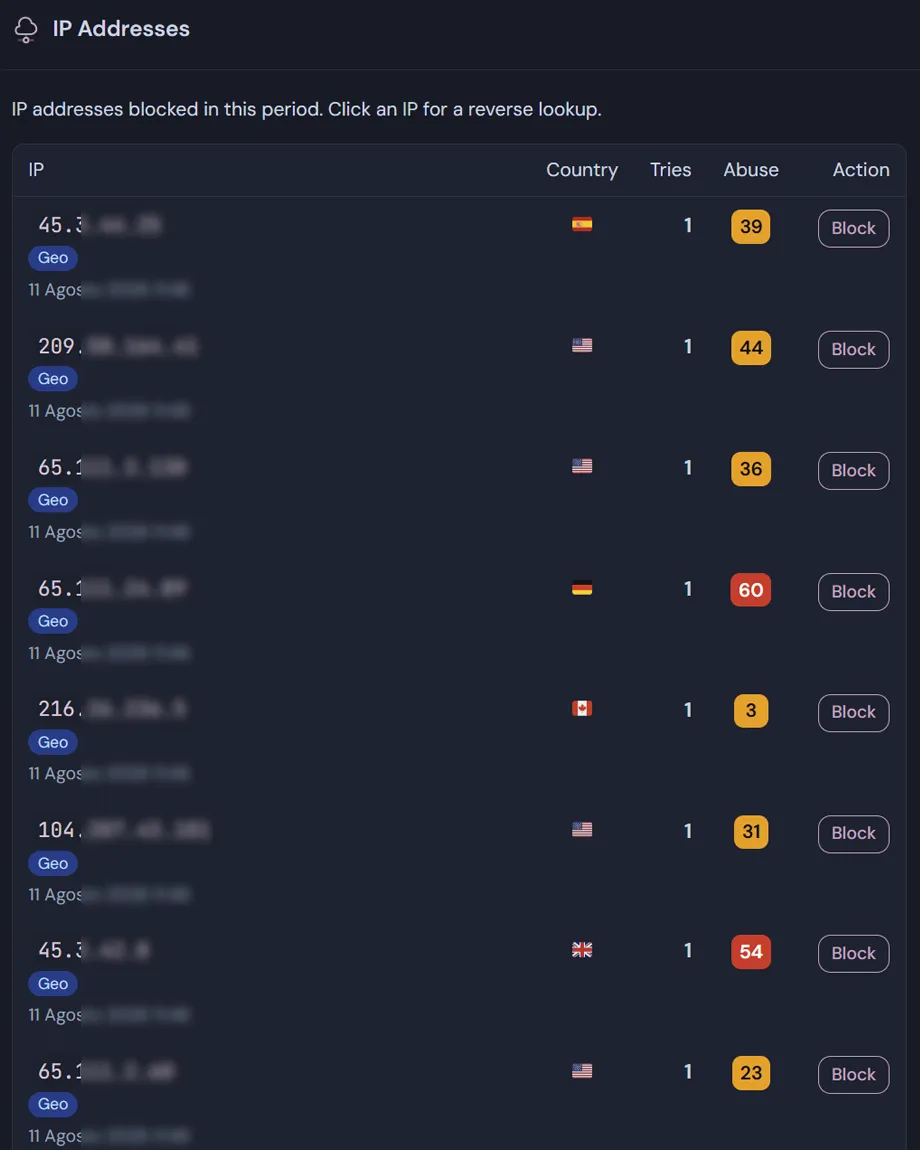
WordPress login security: Ip blocked in a period and abuse score.

Block an IP address in WordPress: Shared IP reputation

Your site blocks login attempts every day, and it knows which address they came from. So does every other site running Deskmode. Taken one at a time those blocks say little; put together they become something no single site can know on its own: which addresses are attacking WordPress sites right now.

With the feature on, once a day the plugin sends our service the addresses it has blocked and receives the ones reported by everyone else. On the Login Security screen you get a list showing the country, how many different sites reported that address and when it was last seen, plus a chart of the last seven days.

Nothing is blocked automatically

Reported addresses do not walk into your blocklist on their own: they appear in a list with a Block button next to each one, and you decide. That is a deliberate choice, not an omission. An address that lands on the list by mistake — a company VPN, a host shared by hundreds of sites — would be turned away on every site at once, and you would find out from the phone calls of clients who can no longer log in.

What leaves your site

Only the IP addresses you have already blocked. No content, no visitor data, no usernames. Your site is identified by a one-way hash of its domain: the service knows how many sites reported an address, not which ones. And the feature is off by default: until you tick the box, no request is made.

Why a WordPress-specific list

General reputation services collect reports from any source and for any kind of attack: port scans, spam relays, attempts against services you do not even run. This list comes from WordPress sites and from attempts against WordPress logins. An address that has just tried two hundred passwords on another site is exactly what you want to know about before it reaches you.

A threshold before an address counts as hostile

An address only enters the shared list once at least three different sites have reported it, within a thirty-day window. This keeps a single report, or one badly configured site, from pushing a legitimate address onto everyone's list. Each site counts as one vote, however many times it reports the same address.

WordPress login security and reciprocity. The list exists because the sites using it also feed it. If you would rather not take part, leave the box unticked: everything else in the plugin works exactly as before, and you simply do not receive the list.

Frequently asked

WordPress login security: the questions we get most

Five answers on attempt limits, address lists, proxies and IP reputation.

How does WordPress brute force protection work here?

You decide how many failed attempts are allowed and for how many minutes the address stays locked out once it passes them. An attack firing passwords in bulk burns through its allowance in the first seconds and then meets a closed door, while someone who simply mistyped is back in after a few minutes.

Pound for pound it is the most effective protection you can configure, because it needs to know nothing about the attacker: it acts on behaviour, not on origin. Above it you can add the country filter; below it, two-factor authentication.

How do I block an IP address in WordPress permanently?

Through the manual blocklist, which accepts single addresses, CIDR notation such as 198.51.100.0/24, and wildcards such as 192.168.1.*. The fastest way to populate it is the Block button beside every address in the activity log, which adds it without reloading the page.

The allowlist always takes precedence over the blocklist. If an address appears on both it gets through, which is why the Block button isn’t even shown next to allowlisted addresses: it would be a promise the system doesn’t keep.

My site is behind Cloudflare. Do the rules still work?

Yes, but you have to set up WordPress Login Security properly. Behind a proxy or CDN your server sees the proxy’s address rather than the visitor’s, so without the option enabled you would always be blocking or allowing the same address - which is to say nobody.

The screen notices this on its own: when it detects typical proxy headers it shows a warning with the address reported by the header alongside the one the server sees, so you can compare them. If that matches your setup, tick the option and every rule starts working on the real address.

What is the IP reputation score for?

With a free AbuseIPDB key, every blocked address shows an abuse confidence score based on reports filed by administrators around the world. An address with a high score is already known for abuse, which makes the decision to blocklist it immediate.

It is optional and off by default: without a key everything else behaves exactly the same. The free tier covers a thousand checks a day, which is ample for a normal site.

Could tightening WordPress login security lock me out?

When you save, your current address is added to the allowlist automatically — precisely because the moment you configure a rule is the moment mistakes happen.

If it happens anyway, say because your address changed, the ADMIN3WEBBLUE_DISABLE_LOGIN_GUARD constant in wp-config.php suspends the protections from outside the dashboard. You can also have an email sent on every block and on every successful login from an address never seen before, so you find out while it is happening.

Shopping Basket