Deskmode Pro Suite – Customize & Secure Your WordPress Admin
A WordPress admin plugin to Customize and secure your WordPress dashboard
How the WordPress security summary works
One page that answers "is this site protected?"
Security settings are scattered by design: rate limiting in one screen, two-factor in another, XML-RPC somewhere else again. Each one is easy to set and just as easy to forget, so the honest answer to whether a site is protected is usually a guess. The security summary replaces the guess with a list.
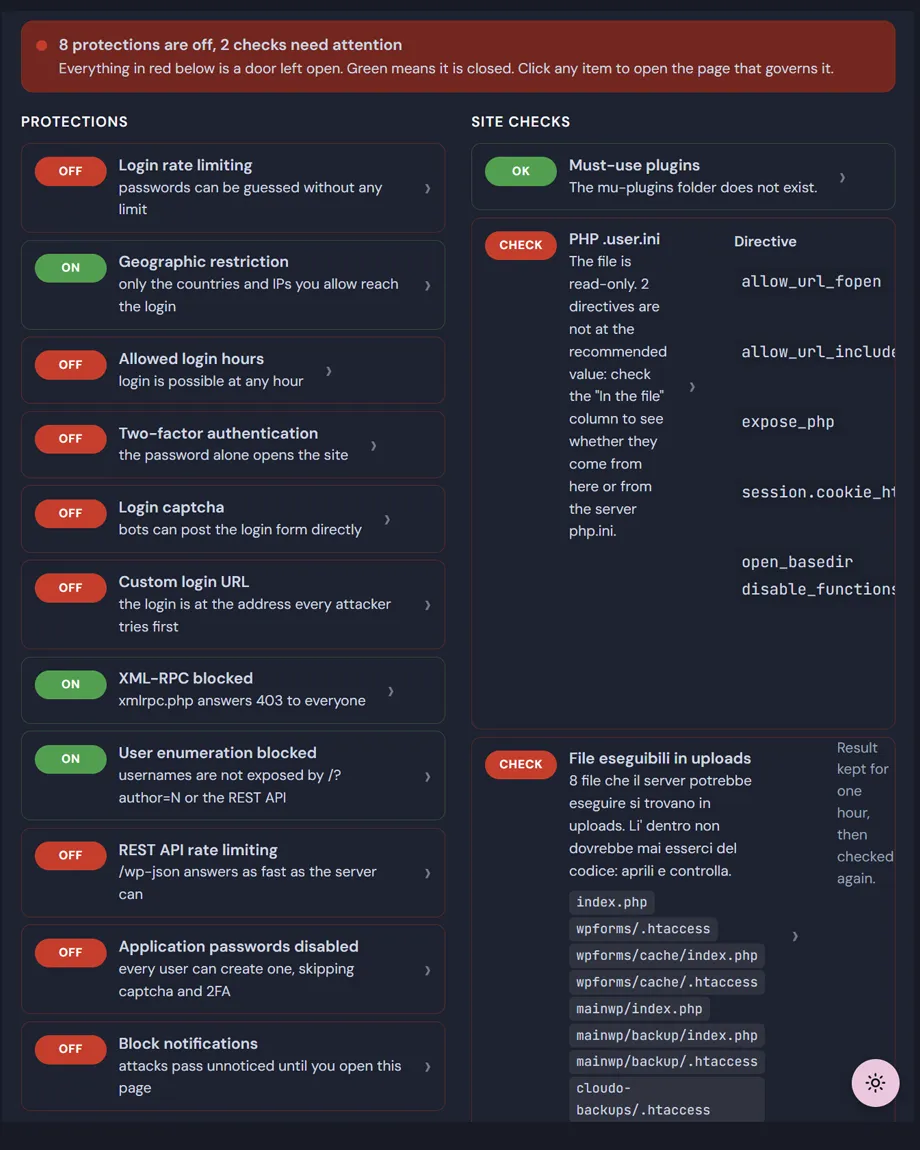
Every protection Deskmode offers appears on a single page with a green or red badge: green when it is on, red when it is off, and one line underneath saying what that means in practice. Not "REST rate limiting: disabled", but "/wp-json answers as fast as the server can". Each line is a link straight to the screen that turns it on.
Every protection, at a glance
- Login rate limiting, geographic restriction, allowed login hours and block notifications.
- Two-factor authentication and captcha, with the captcha counted as active only when both API keys are actually saved, so a half-configured service never shows green.
- Custom login URL, XML-RPC, user enumeration, REST API rate limiting and application passwords.
- A counter at the top: how many protections are off, and how many checks need attention.
Three checks WordPress never runs
The summary also looks at things outside the plugin, the ones that stay invisible until someone is already inside. All three are read-only: nothing is changed, moved or deleted.
- Must-use plugins. They load on every request and cannot be deactivated from the Plugins screen. Many hosts install one legitimately, which is exactly why a hostile one goes unnoticed there. The summary lists what is in the folder so you can recognise what belongs.
- The PHP .user.ini. Whether it exists, whether it is writable by the web server, and what open_basedir, allow_url_fopen, disable_functions and the rest are actually set to. Each directive shows the value in effect next to whether it comes from that file or from the server's php.ini, because a file can exist and still be ignored.
- Executable files in uploads. A recursive scan for .php, .phar, .phtml and a dozen other extensions the server could run. Nothing in a media folder should ever be code. It also tells you when no .htaccess is stopping PHP from running there.
The uploads scan is kept for one hour and stops after 20,000 files, so it never slows the dashboard on a site with a large media library. When it stops early, the page says so instead of pretending the result is complete.
On .user.ini: it only applies when PHP runs as CGI or FPM. On mod_php the summary says so and gives no verdict, rather than reporting a problem that does not exist on your server.